
VALVE
On this page, you'll find basic and advanced information regarding sizing and selecting arc of motion actuators.
Looking for Virtual Engineer?
**Note that you must sign in to Parker.com to begin with Valve. Accessing Virtual Engineer for Linear Motion or Arc of Motion do not require you to sign in**
START THE SIZING PROCESS
- Access the Tool: From the Virtual Engineer landing page, click on Valve to begin sizing, selecting, and configuring both valves and manifolds. You will be prompted to either create a login ID or sign in to parker.com.
- Adding Application: Once signed in, select a group and the initial part to add. Note that the application type will be automatically selected.
- Select Application Type: On the right-hand side, choose the appropriate option for your specific application such as Parker actuators, generic actuator, or a simple general flow requirement
KEY FEATURES
- Generate Results: After entering the minimum data requirements, the "Generate Results" button will become active. Press this button to initiate calculations for potential solutions.
- Compare Solutions: After generating results, the "Compare" button will activate, allowing you to compare the list of potential solutions.
- Save Progress: Use the "Save Progress" button at any time to resume your work later.
- Reset Parameters: The "Reset Parameters" option should only be used if you want to start over, as it will clear all entered data.
- Metric/Imperial Selector: Toggle between metric and imperial units for all inputs. You can also override this setting for individual inputs.
- My Project Section: Access the "My Project" button to store your information. Here, you can share your projects internally or externally with customers or suppliers.
Looking for more help? Download the detailed guide.
CONFIGURE YOUR PROJECT
- Project Setup: After clicking into the Valve section of Virtual Engineer, you will be taken to the primary application screen. Here, you can name your project and provide a description. If you save your project, you can access it anytime within the My Projects Dashboard on Virtual Engineer.
SELECT OR CHOOSE FROM EXISTING APPLICATION
- Select First Application: From the application screen, select between your first application on which you'll connect the valve. You can choose between Parker linear or pneumatic actuators, general pneumatic applications, or a generic (non-Parker) actuators.
- Application Tiles: You will see two application tiles below the project title and description. Once you've selected your first application, the first tile will show a white box with the first pneumatic application you selected while the second tile will be blank with a plus symbol. Click this tile to set the application parameters for the actuator or general pneumatic application.
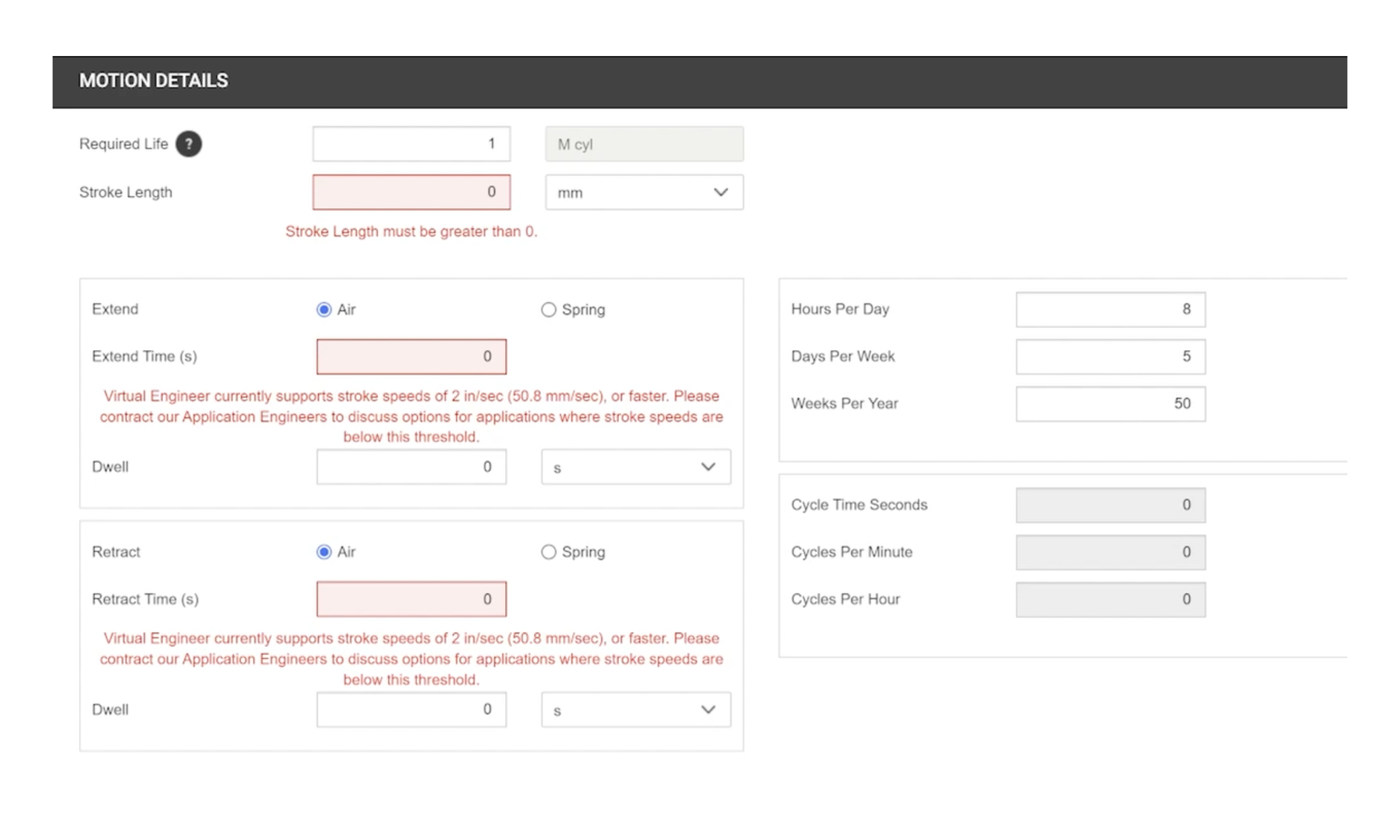
- Enter Input Values: Fill in the data cells, keeping in mind that red cells indicate required data.
ENTER VALVE DETAILS
- Input Operating Parameters: Click on the valve application tile to input your operating parameters. The information from the actuator configuration will be populated automatically.
- Input Functional Requirements: These include function type, operator type, temperature, etc.
GENERATING RESULTS & COMPARING PRODUCTS
- Generate Results: After entering all required parameters, scroll to the top of the page and click the Generate Results button. This will display all product options that fit your input parameters.
- Compare Valve Options: Click the Compare button at the top right of the screen. You can sort by any column title and click Select Columns to customize the comparison based on your project needs.
- Select the Valve: select the valve that fits your needs click 'Configure.' The attributes you selected will automatically populate the configurator, however, there may be additional choices to be made within the configurator to finalize your selection.
- Finalize Selection: Once configured, click 'Save and Proceed' to access a part summary report, download CAD drawings, and review finalized part details.

Need Assistance?
We're here to help.
For questions about Parker products or using Virtual Engineer, please contact technical support | pdn.technical@support@parker.com
To place an order or check the status of an order, please contact Customer Support | pdn.support@support.parker.com
For marketing-related queries, please contact the Parker Pneumatic Division Marketing Department | pdnmktg@parker.com
Visit Parker.com